Snapshots and history
Capture the state of the network at the exact moment and compare it with other moments. It widens your view of how it evolves.
v1.3.0 · Windows 10 and 11 · airMAX and MikroTik
Get a unified view of your entire wireless infrastructure. SignalScope analyses the signal, capacity and performance of your airMAX and MikroTik radios to give you precise diagnoses in an instant.
Read the documentation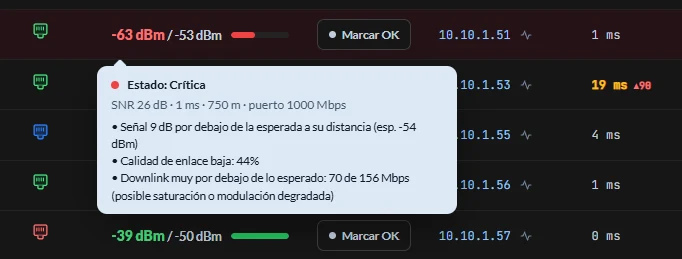
How it works
Open the project, run a scan and the rest sorts itself out. Nothing to declare device by device, nothing to install on the radios.
Step 01
Discovery through ping and the system ARP table. You declare the range, not the devices.
Step 02
On login every radio reports its mode and lands in stations, APs or other devices.
Step 03
Signal, capacity, latency and load for every device, refreshing without you touching anything.
Step 04
The diagnosis names the likely cause and the sentinel sends it to your phone.
01 · Monitoring
One table for the whole network: local and remote signal in dBm, link quality, modulation, capacity, latency and the AP each client hangs from.
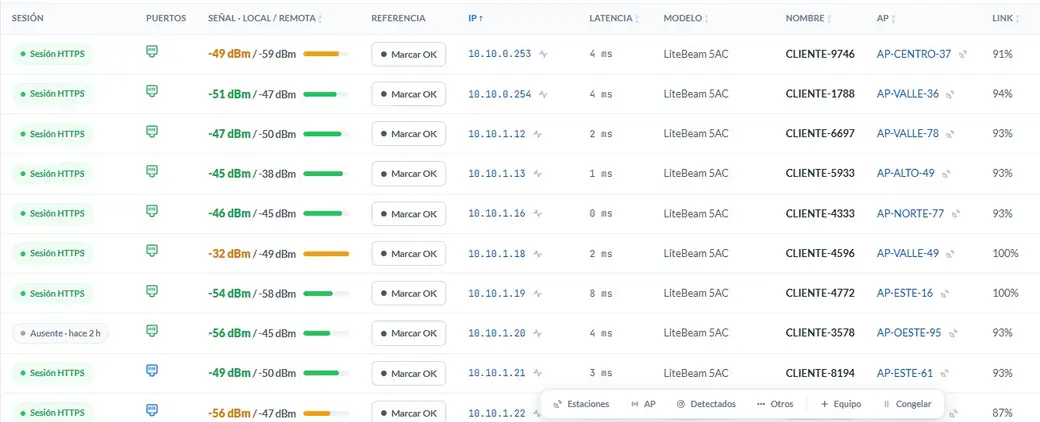
Real screenshot · the app's light theme
CLIENT-1387 · 10.10.1.111
Signal 9 dB below the one expected at its distance (exp. -54 dBm)
Low link quality: 44 %
Downlink far below expected: 70 of 156 Mbps
Those three lines are the literal text the app shows on a critical station.
02 · Diagnosis
The status chip is not a signal meter: it is the worst of seven axes evaluated at once. That is why it can turn red with a flawless signal — and tell you why.
The thresholds come from field cases and keep being tuned; the app explains under Help how they were set, and the user guide publishes the current ones.
03 · Network design
Place your nodes on the map and look at each sector's coverage, with its bearing, its reach and the clients hanging off it. The next rollout stops being decided from memory.
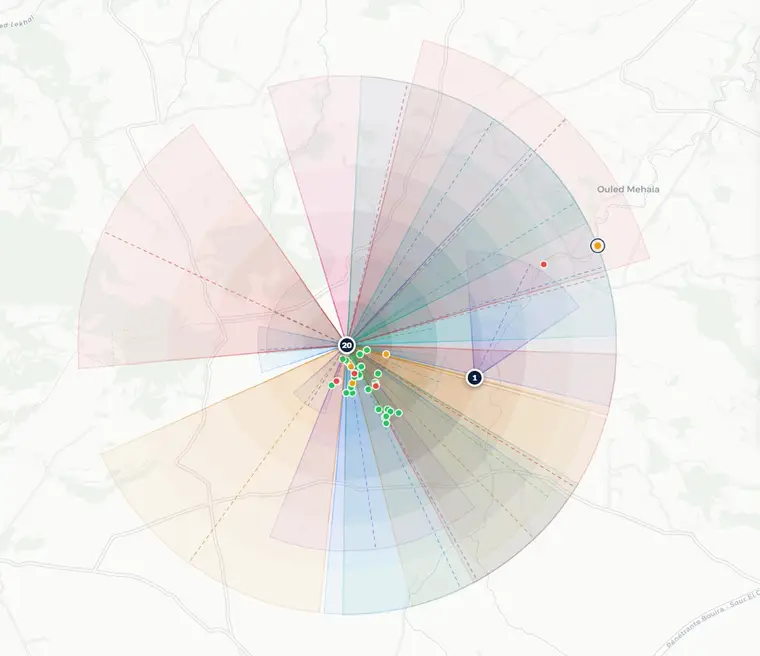
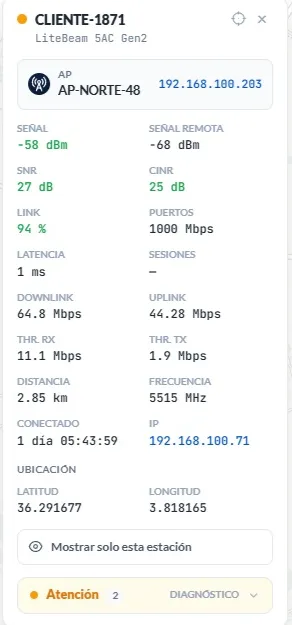
Real screenshot · coverage map with 20 sectors
Service sentinel
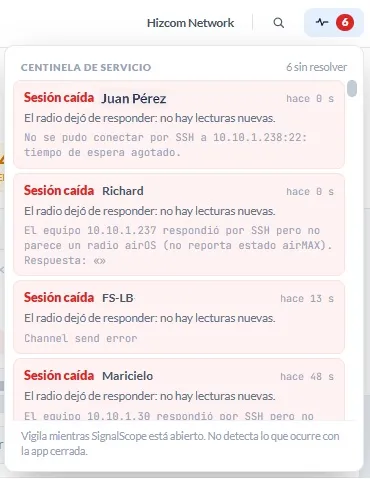
SignalScope watches your network continuously and alerts you the moment anything goes technically wrong: dropped sessions, unreachable radios or swings in signal.
The alerts reach your WhatsApp or your Telegram, intelligently consolidated.
The Sentinel runs in the background while the application stays open. Sending external alerts (WhatsApp/Telegram) needs an active internet connection on the monitoring machine.
Session dropped · 3 devices
CLIENT-1387 · 10.10.1.111 · AP-NORTE-48
CLIENT-4772 · 10.10.1.19 · AP-ESTE-16
CLIENT-3578 · 10.10.1.20 · AP-OESTE-95
Materis project · 19:41:07
The timestamp is that of the first alert taken, not of the delivery: what matters is when the client lost service.
Frequency planner
Not a generic analyser: it draws the spectrum your APs occupy, with their centre frequency and channel width, and suggests where the next one fits.
Where a 40 MHz channel would fit · green free, red taken
Available 40 MHz channels · suggested centre frequency
And then, every day
Capture the state of the network at the exact moment and compare it with other moments. It widens your view of how it evolves.
Generate a report of the network's latest state, filter what you need and download it in the format you prefer.
Use keyboard shortcuts to move around the app without losing focus, and the search to find a device in seconds.
Mark the devices that are missing from the network to keep better track of them.
Baselines, masks, snapshots and credentials travel in an encrypted file that only you open.
Measured from both ends of the link, with average, peak and persistence, and contrasted with SignalScope.
The app understands how each port behaves and warns you when there are problems.
One credential opens a session across the whole estate, in order, without going device by device.
A grade for the whole estate, with the split of good, warning and critical.
Compatibility and roadmap
SignalScope connects natively to your Ubiquiti airMAX radios and MikroTik devices running RouterOS 6 and 7. No catalogue restrictions and no complex setup.
Frequently asked questions
Can't find your answer? Our support team will reply to you directly at support@materis.io.
No, and that's a design decision: the application is strictly read-only. It never sends configuration commands to a radio, so there's no risk of taking a link down by accident.
Ubiquiti airMAX radios, any model running airOS, over HTTPS and SSH, and MikroTik devices running RouterOS 6 and 7, over SSH. The rest of your network (switches, ONUs, customer routers) you watch as References.
Windows 10 and 11, available on the Microsoft Store. No drivers or extra dependencies to install.
No. The sentinel watches while SignalScope is open, and from there it sends the alerts to your WhatsApp or Telegram. It runs in the background, so you can close the window.
No. The 30-day trial includes every feature, is entirely local and asks for no email, sign-up or card.
When you buy the licence you get an email with the key. Delivery takes a few minutes, except for bank transfers, which need manual confirmation.
Mercado Pago and bank transfer (BCP, Interbank).
There is a customer portal. There you can see your purchases and renewal dates, add machines to your licence and get support.
From your portal: in your subscription you raise the number of machines and pay only for the stretch that is left. The renewal date does not move. Each customer has a single subscription per product, so buying another licence would not add machines to the one you already have.
No. The licence lasts 12 months from activation and creates no automatic charges: to carry on, you renew the period from your portal and Materis issues the payment.
Yes. Each licence authorises the number of activations stated at purchase, and you can release an activation from within the application to use it on another computer. If you lost access to the machine, write to us and we'll free the slot.
No. Everything the application discovers about your infrastructure is stored locally and encrypted on your own computer: there is no copy on our servers, no usage analytics and no sharing with third parties. The only feature that sends network data off the machine is the messaging alerts, and it is off by default. The privacy policy spells it out.
Licence
There is a single plan. We email you your activation key as soon as the payment is confirmed.
One activation equals one computer, and it lasts 12 months from the day you activate it.
You pay at materis.io by card, Yape or bank transfer. Your licence key reaches your email as soon as the payment clears (usually within 24 business hours).
Materis Network charges you; it is who licenses and invoices SignalScope. See purchase terms · returns
Already a customer? Add machines to your licence from your portal and pay only the difference: go to my portal
Download it, enter your network segment and check the state of your radios right away. Includes a 30-day trial, at no cost and with no commitment.